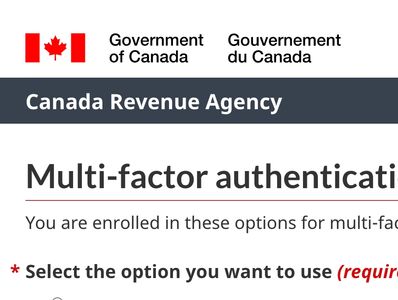
CRA Login Issue: “Set Up a Backup Authentication Method”
When logging in, the CRA may ask you to set up a backup authentication method using an “app.” The CRA does not explain which app to use or where to get it, and displays a QR code that can appear as though it is meant to download the required software. This is not the case.
The CRA is referring to a third-party authenticator app that must be installed on your device before scanning the QR code.
Important to know
- The CRA does not provide the authenticator app itself
- You must download an approved app from your device’s app store first
- The QR code is used to connect the app to your CRA account, not to download the app
Accepted authenticator apps
The CRA currently accepts:
- Google Authenticator
- Microsoft Authenticator
These apps are available through the App Store or Google Play.
What to do
- Install Google Authenticator or Microsoft Authenticator on your phone or device
- Return to the CRA login screen
- Open the authenticator app and choose Add account or Scan QR code
- Scan the QR code shown on the CRA website
- Enter the 6-digit code generated by the app to complete setup
Common confusion
If you scan the QR code without an authenticator app installed, your device may open password or security settings instead. This does not complete the setup, and the QR code will not download the required app for you.
How to confirm it worked
If you are able to log in successfully and receive authentication codes through the app, your backup authentication method has been set up correctly.